

User Manual
Complete guide to the LoadTestLab web application and the LTL Agent for automated Apache JMeter performance testing
Manual version 1.0 · Application version 2.0.3 · October 2026Introduction to LoadTestLab
This part explains what LoadTestLab is, whom it is intended for, how it works together with the LTL Agent and Apache JMeter, and what benefits it brings to performance testers and their organisations.
1. About LoadTestLab
LoadTestLab is a cloud-based web application (LTL Cloud) for the automation and management of performance tests executed with Apache JMeter. It provides performance testers with a single place where they can configure, schedule, start and stop tests, collect and archive the measured results, evaluate them against defined acceptance criteria, compare them with a reference test, generate reports and automatically inform all interested parties.
LoadTestLab works together with the LTL Agent, a lightweight application that the tester installs on the load generator, i.e. the computer or server on which JMeter is installed. The LTL Agent receives commands from LoadTestLab, runs JMeter in non-GUI mode and sends the measured results back to LoadTestLab automatically.
2. Who Is LoadTestLab For
User group | How they benefit |
|---|---|
Performance testers | Automate repetitive activities around test execution and focus on test design, analysis and tuning instead of administration. |
Test managers and test leads | Gain an overview of planned, running and completed tests across projects, and receive results and evaluations automatically. |
Project managers and stakeholders | Receive clear test reports and notifications without needing access to JMeter or to the load generator. |
Developers and operations teams | Get fast feedback on whether performance has improved or deteriorated after each change thanks to the comparison with the reference test. |
Companies and testing service providers | Keep a central, secure and auditable archive of all performance tests, scripts and results for their projects and customers. |
3. What LoadTestLab Does – and What It Does Not Do
It is important to understand the scope of the solution. LoadTestLab does not create or debug performance test scripts. The tester continues to design, create, parameterise and debug the JMeter test plans (.jmx files) manually in Apache JMeter, exactly as before. LoadTestLab takes over everything that happens around the execution of a finished, debugged script.
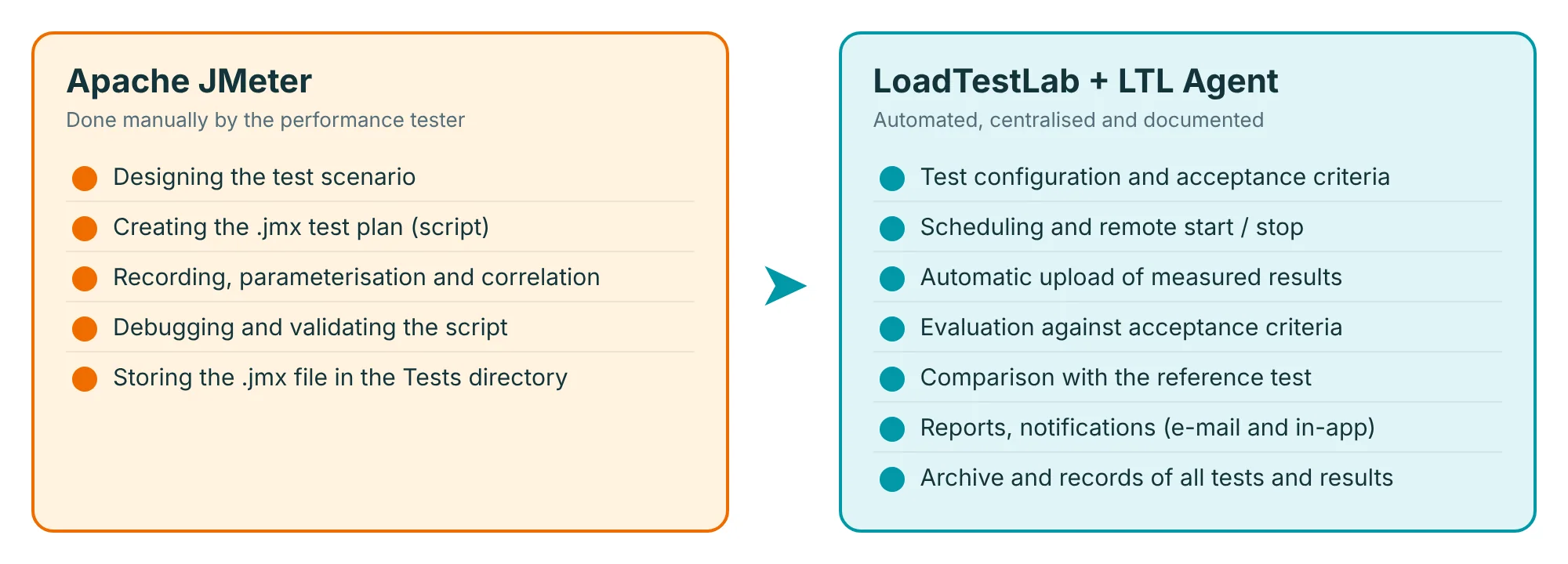
LoadTestLab is used for:
- execution of performance tests on the load generator through the LTL Agent, including remote start and stop,
- planning and scheduling of one-off and regular test runs in a calendar,
- automation of the complete test cycle: start, stop, upload of results, evaluation and reporting,
- evaluation of the results against performance acceptance criteria and comparison with a reference test,
- reporting and notifications by e-mail and in the application,
- records and archiving of tests, their configurations, JMeter outputs, reports and evaluations.
4. How LoadTestLab Works with the LTL Agent
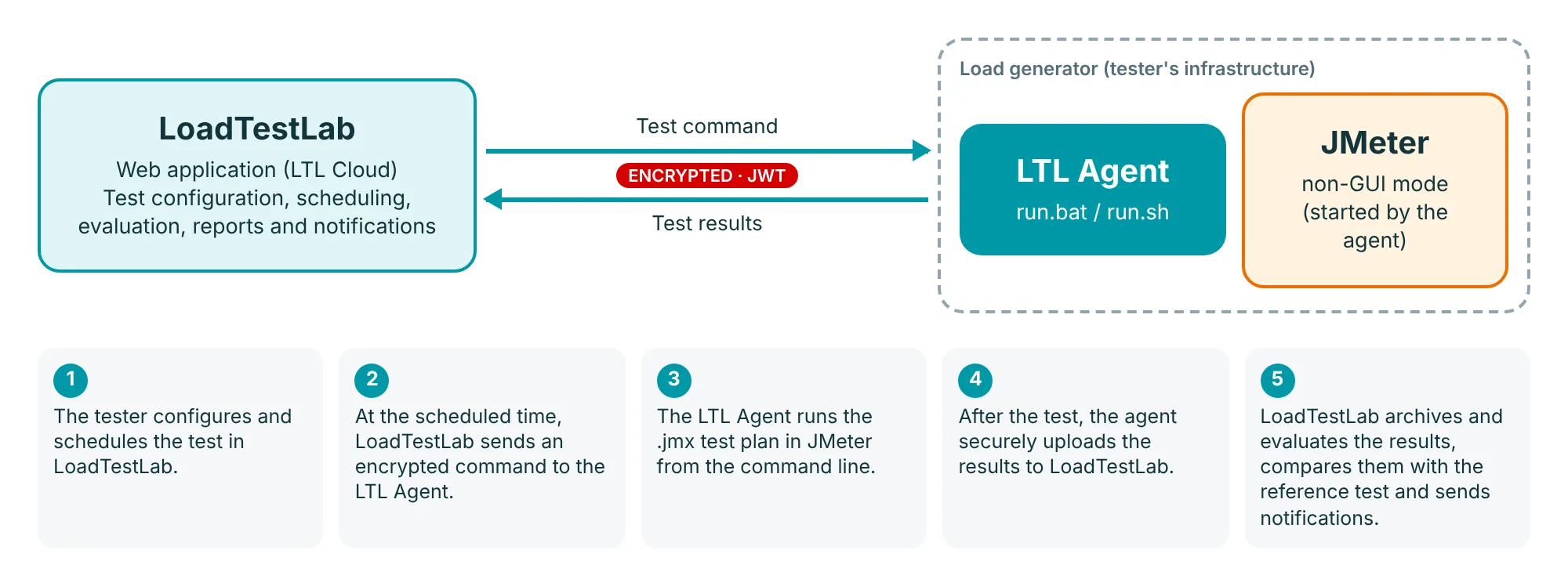
- The tester downloads a pre-configured LTL Agent from LoadTestLab and extracts it on the load generator on which JMeter is installed.
- In LoadTestLab, the tester creates a test, specifies the JMeter .jmx file to be executed, the test parameters (load, duration, ramp-up), the acceptance criteria and, optionally, the schedule (date, time and frequency).
- At the scheduled time (or when the tester clicks Start), LoadTestLab sends an encrypted command to the LTL Agent.
- The LTL Agent starts JMeter from the command line in non-GUI mode with the requested parameters.
- When the test finishes, the LTL Agent securely uploads the measured results to LoadTestLab.
- LoadTestLab archives the results, evaluates them against the acceptance criteria, compares them with the reference test, generates reports and sends notifications by e-mail and in the application.
5. Key Benefits
Automation of the complete test cycle
- Tests can be started and stopped remotely from LoadTestLab at any time, even without access to the load generator.
- Any number of tests from different projects can be scheduled in the calendar, including regular (daily, weekly, monthly) runs.
- Results are uploaded, evaluated, compared with the reference test and reported automatically after every test.
- Project members are notified automatically about the start, end and results of tests.
Quality and consistency of results
- Every test is evaluated using the same, explicitly defined acceptance criteria (error rate and average response time, at project or test level).
- Each run of a regression test is compared with the selected reference test, so improvements and deteriorations are visible immediately.
- Tests run in the recommended JMeter non-GUI mode, which saves CPU and RAM on the load generator and allows it to generate a higher load than in GUI mode, without additional hardware investment.
Central records and archive
- Test configurations, schedules, executed tests, JMeter outputs, reports and evaluations are kept in one place. No separate spreadsheets or documents are needed.
- Projects, labels and users provide a clear structure for teams and customers.
Simple deployment
- No installation is required: the LTL Agent is a .zip file that only needs to be extracted.
- Windows and Linux are supported. No VPN and no firewall exceptions for incoming traffic are required.
6. Time Savings
LoadTestLab removes the routine manual activities that a performance tester typically has to carry out before, during and after each test run. The table below summarises them.
Activity per test run | Without LoadTestLab | With LoadTestLab |
|---|---|---|
Being present to start and stop the test at the planned time | Manual, often outside working hours | Automatic according to the schedule |
Copying and uploading JMeter results | Manual | Automatic (LTL Agent) |
Evaluating results against acceptance criteria | Manual analysis | Automatic |
Comparing results with the previous (reference) run | Manual, error-prone | Automatic |
Preparing the test report with charts | Manual | Automatic |
Informing the team about start, end and results | Manual e-mails | Automatic e-mail and in-app notifications |
Keeping records of configurations, scripts and outputs | Separate files and spreadsheets | Central archive in LoadTestLab |
7. Security
LoadTestLab was designed so that it can be used safely in corporate environments, including environments with strict security policies.
Area | How security is ensured |
|---|---|
Encrypted communication | All communication between LoadTestLab (LTL Cloud) and the LTL Agent in the tester's internal infrastructure is encrypted and complies with current security standards. |
Authentication of the agent | The LTL Agent authenticates with a JWT certificate (JSON Web Token, RFC 7519) valid for 60 days. It is refreshed automatically and can be regenerated manually at any time, for example when an employee leaves or a customer changes. |
No inbound access to your network | The LTL Agent connects from the load generator to LTL Cloud. No VPN, no open inbound ports and no allow-listing of the LTL Cloud IP address are required. |
Your scripts stay with you | Only the file name of the JMeter .jmx test plan is stored in LoadTestLab; the script itself is not uploaded and remains on the load generator. |
Encrypted data storage | The tester's data stored in LTL Cloud is encrypted and complies with the strictest security standards. |
Access control | Users have roles; administrators can activate, deactivate, terminate or restore user accounts and reset passwords. Projects have defined members. |
Secure payments | Payments are processed by Stripe. Card details are entered only on Stripe's secure payment page. |
8. Infrastructure Requirements
LoadTestLab does not place any special requirements on the customer's infrastructure or IT department. The only requirement is that the LTL Agent on the load generator is permitted to access the Internet.
Area | Requirement |
|---|---|
Network | Internet access for the LTL Agent on the load generator. No VPN, no inbound ports, no IP allow-listing. |
Operating system | Windows (agent started with run.bat) or Linux (agent started with run.sh). |
Java | Java JDK or JRE, version 1.8 or later. |
JMeter | The latest version of Apache JMeter with the recommended user.properties file (see Chapter 22). |
Hardware | No specific CPU, RAM or disk requirements for the agent; any standard computer meets them with a reserve. Set the JVM heap of JMeter according to the vendor's recommendations. |
Browser | A current web browser for working with the LoadTestLab web application. |
9. Current Limitations
- The LTL Agent requires Internet access in order to function.
- Currently, a registered company (team) can create only one LTL Agent.
- Interim results of a running test are not yet available online in LoadTestLab. They can be viewed in real time directly on the load generator.
- Only one test can be executed through the LTL Agent at a time. A second, simultaneous test must be started manually and its results uploaded manually (see Chapter 31).
Getting Started
This part describes how to create an account, sign in, subscribe to the service and find your way around the application.
10. Registration and Sign-in
Signing in
Open the LoadTestLab login page, enter your Email and Password and click Login. Alternatively, you can sign in with your Google account by clicking the Google button below the login form.
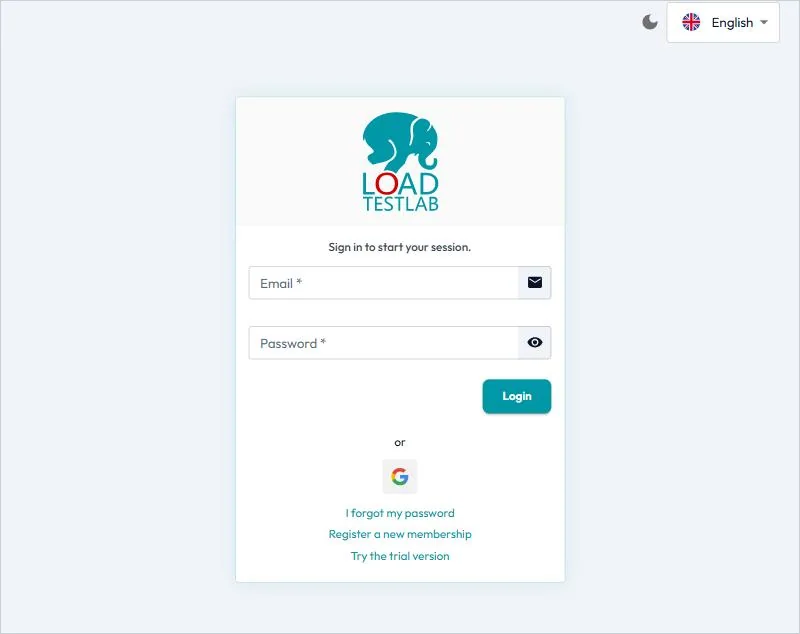
The login page also provides the following options:
- I forgot my password – enter your e-mail address and click Confirm to receive instructions for resetting your password.
- Register a new membership – registration of a new paid user (see below).
- Try the trial version – registration of a free trial user.
- Language selection and a light/dark theme switch in the upper-right corner.
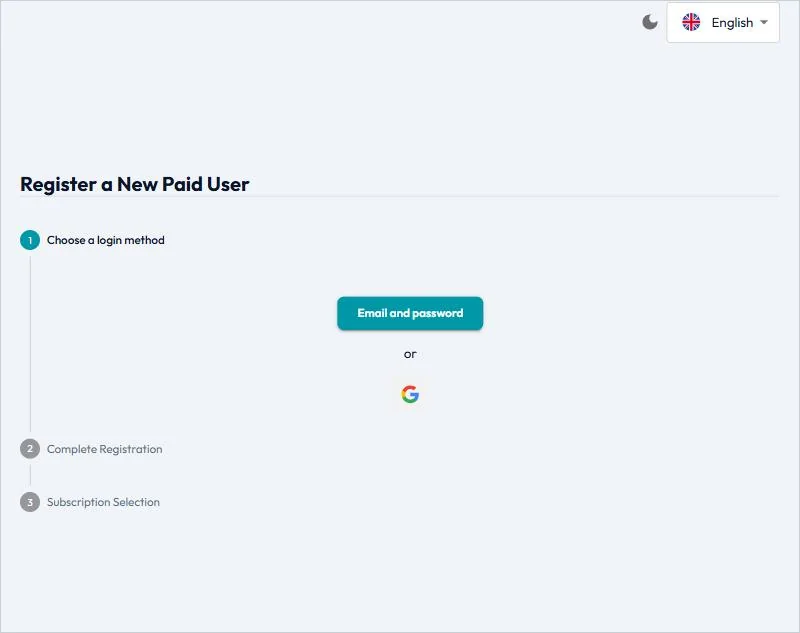
Registering a new paid user
Registration consists of three steps:
- Choose a login method – select Email and password, or register with your Google account.
- Complete Registration – enter the company details (company name, tax ID number), the contact person (name and surname, e-mail) and the residential or registered address, accept the Terms of Use of the Service and the Privacy Policy, and click Register.
- Subscription Selection – choose the subscription and complete the payment (see Chapter 11).
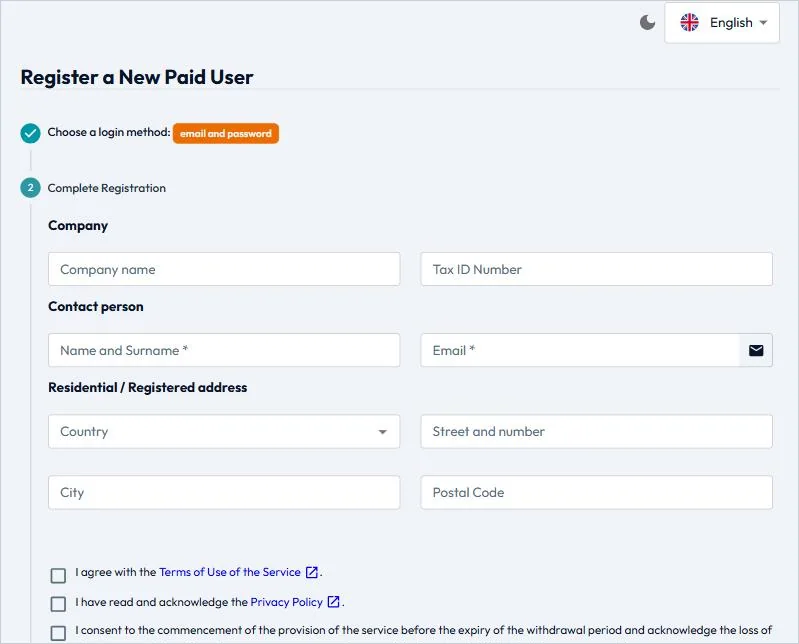
Registering a trial user
The trial registration (Try the trial version) has only two steps – choosing a login method (e-mail and password, or Google account) and completing the registration. No payment is required.
11. Subscription and Payment
LoadTestLab is provided as a subscription service. In the third step of the registration (Subscription Selection), select the subscription you want to use. The application then redirects you to the secure Stripe payment gateway, where you enter your payment details and confirm the payment.
After successful payment:
- the subscription becomes active and is shown in Subscription in the left menu,
- you receive the notification Subscription was activated,
- the invoice is available in Invoices in the left menu.
Subscription types available for users are Free trial, Monthly fee and Yearly fee. Management of an existing subscription is described in Chapter 23.
12. Application Layout
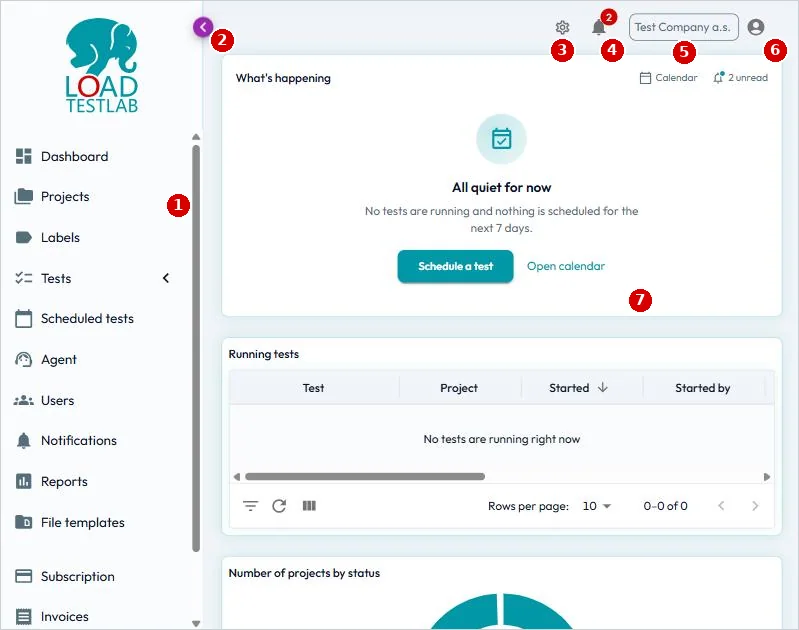
No. | Element | Description |
|---|---|---|
1 | Left main menu | Navigation to all modules: Dashboard, Projects, Labels, Tests (Test list, Test evaluations, Test comparisons), Scheduled tests, Agent, Users, Notifications, Reports, File templates, Subscription, Invoices and Help. The application version is shown at the bottom. |
2 | Collapse menu | Collapses or expands the left menu. |
3 | Customize dashboard | Available on the Dashboard; switches the dashboard into editing mode (see Chapter 13). |
4 | Notifications | Bell icon with the number of unread notifications; opens a list of the latest notifications (see Chapter 20). |
5 | Team | Name of the team (company) you are currently working in. |
6 | User account menu | Profile, Preferences and Logout (see Chapter 26). |
7 | Working area | Content of the selected module. |
Working with tables
Most modules display data in tables with a common toolbar:
Control | Function |
|---|---|
Column header | Click to sort by the column (ascending/descending). |
Filter | Filter the rows by the values of one or more columns. |
Refresh | Reload the data in the table. |
Manage columns | Show or hide individual columns. |
Export (download icon) | Download the content of the table (available in selected tables). |
Rows per page and arrows | Set the number of rows displayed and move between pages. |
Items shown as underlined links (for example a project or test name) open the detail of the item.
Working with the Application
This part describes all modules available from the left main menu, the top menu and the dashboard.
13. Dashboard
The Dashboard is the start page of the application. It provides an overview of the current situation in your team.
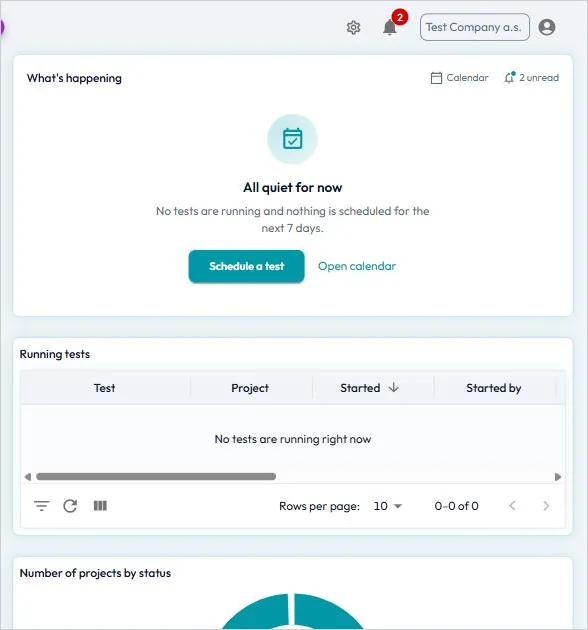
Widget | Content |
|---|---|
What's happening | Summary of running tests and tests scheduled for the next 7 days, with links to the Calendar and to unread notifications, and the buttons Schedule a test and Open calendar. |
Running tests | Tests currently running: test, project, start time, started by, test type and progress. |
Number of projects by status | Chart of active and inactive projects. |
Number of tests by status | Chart of active and inactive tests. |
Number of test evaluations performed over time | Trend of performed test evaluations. |
Active projects | List of active projects with label, description and number of tests. |
Active tests | List of active tests with label, test type, application and application version. |
Performed comparisons | Latest comparisons with reference tests, including the difference in the total error rate. |
Customising the dashboard
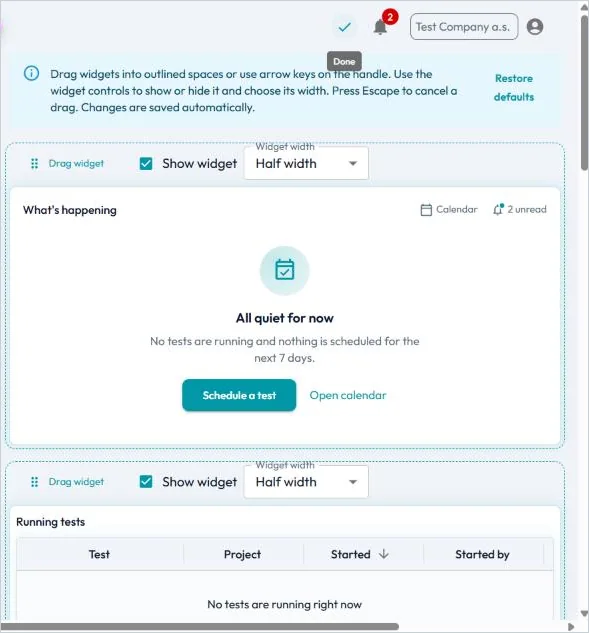
Click the Customize dashboard icon (gear) in the top bar. In editing mode you can:
- drag widgets to a different position (or move them with the arrow keys on the handle),
- show or hide a widget with the Show widget check box,
- change the Widget width,
- return to the original layout with Restore defaults.
Changes are saved automatically. Click the check mark (Done) to leave editing mode.
14. Projects
Projects are used to organise tests, for example by application, customer or contract. Each project has its own members and its own default performance acceptance criteria, which apply to all tests of the project unless a test defines its own.
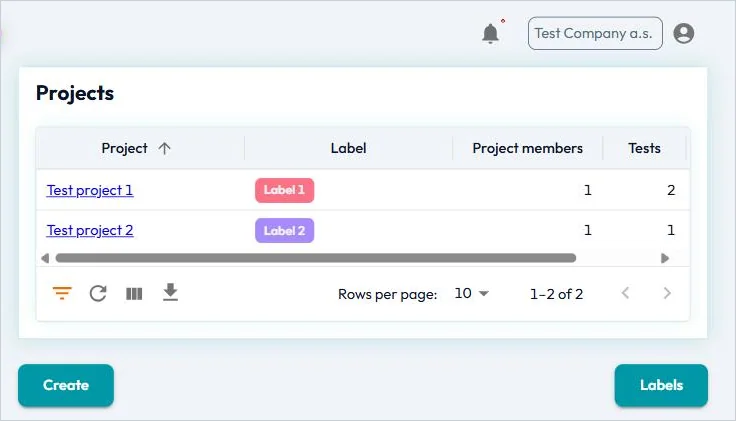
Creating a project
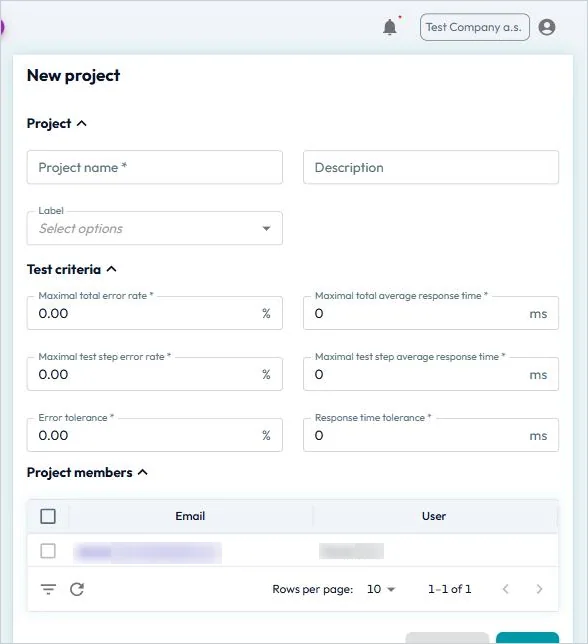
- In the left menu, click Projects and then Create.
- Enter the Project name, an optional Description and select a Label.
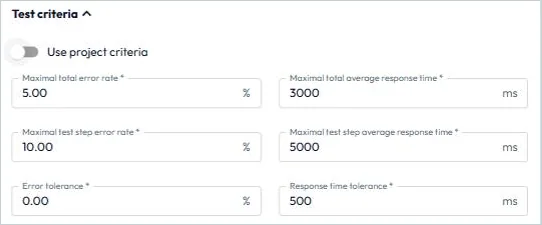
- In Test criteria, define the default acceptance criteria of the project: maximal total error rate (%), maximal total average response time (ms), maximal test step error rate (%), maximal test step average response time (ms), error tolerance (%) and response time tolerance (ms).
- In Project members, add (Add) or remove (Remove) users who work on the project.
- Click Save.
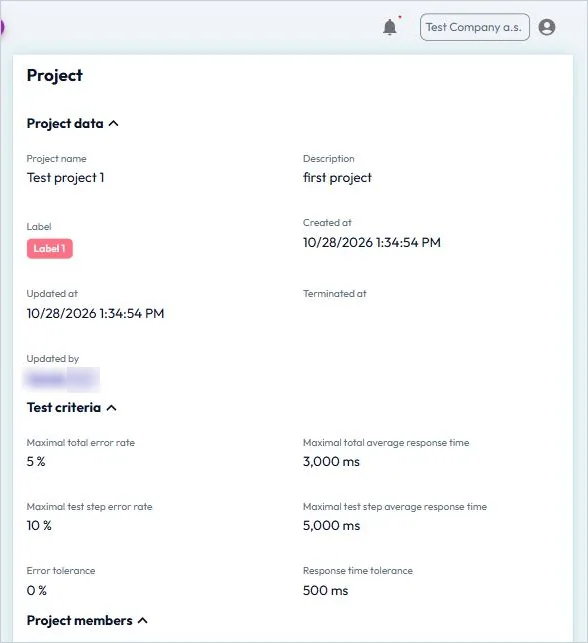
Project detail
Click the project name in the list to open its detail. The detail shows the project data, test criteria, project members and the tests of the project. The following actions are available:
Button | Action |
|---|---|
Create | Create a new test in the project. |
Edit | Change the project data, criteria and members. |
Terminate | End the project (it becomes inactive). |
Back | Return to the list of projects. |
15. Labels
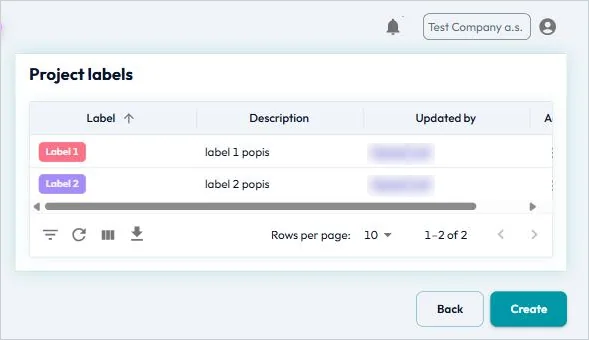
Labels are coloured tags that help you to categorise and filter projects and tests (for example by priority, customer or release). The list of labels is available under Labels in the left menu, or via the Labels button in the lists of projects and tests.
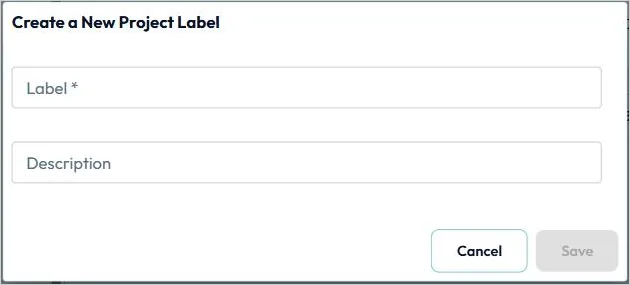
- Click Labels in the left menu and then Create.
- Enter the Label name and an optional Description.
- Click Save.
16. Tests
The Tests menu item contains three sub-items: Test list, Test evaluations and Test comparisons. A test in LoadTestLab represents a performance test with a specific configuration. Each test can be executed any number of times; repeated runs of the same test are regression runs that can be compared with each other.
16.1 Test list
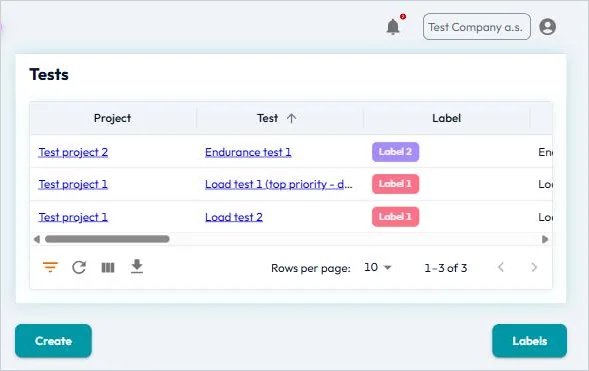
The list shows all tests with their project, label, test type and application. Use Create to create a new test and Labels to manage labels.
16.2 Creating and editing a test
Click Create in the test list (or Edit in the test detail). The form contains the following sections:
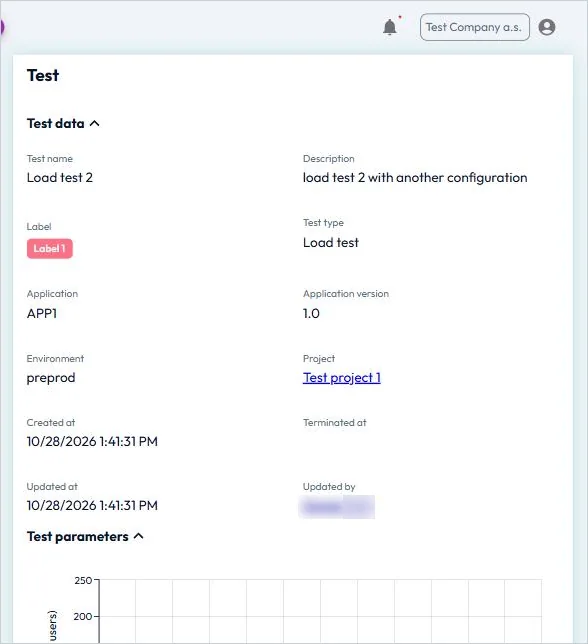
Test data – Test name, Description, Label, Test type (Load test, Stress test, Endurance test), Application, Application version, Environment and Project.
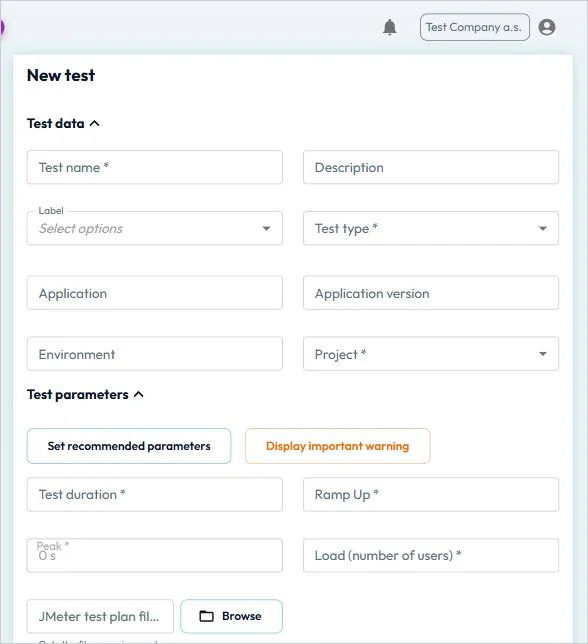
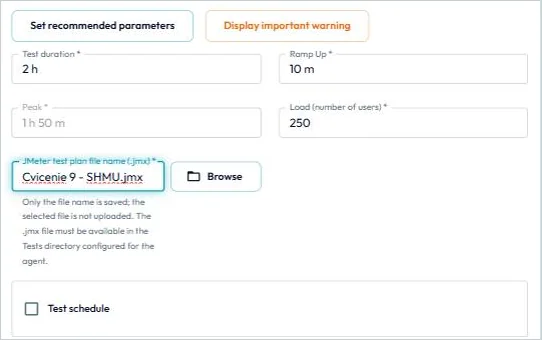
Test parameters – Test duration, Ramp Up, Peak (calculated), Load (number of users) and the JMeter test plan file name (.jmx). The chart shows the load profile of the test. Only the file name is saved; the file itself is not uploaded and must be available in the Tests directory configured for the LTL Agent.
The button Set recommended parameters fills in recommended values according to the test type:
Test type | Test duration | Ramp Up | Load (users) |
|---|---|---|---|
Load test | 1 h | 15 min | entered by the tester |
Stress test | 2 h | 2 h | 3,000 |
Endurance test | 4 h | 30 min | entered by the tester |
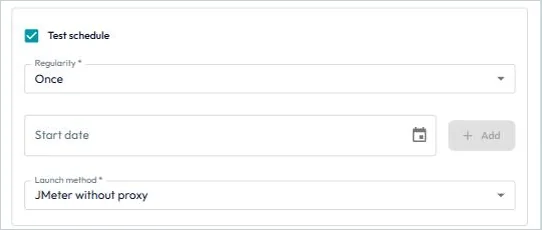
Test schedule – select the check box to schedule automatic execution:
- Regularity: Once – enter the Start date (date and time) and click Add.
- Regularity: Regularly – enter Valid from, optionally Valid to (leave empty for unlimited validity), the Regularity Type (Daily, Weekly, Monthly), the Execution time (click Add for each time) and the Time zone for the execution time.
- Launch method – JMeter without proxy, JMeter with proxy, JMeter master-slave without proxy, or JMeter master-slave with proxy.
Test criteria – keep Use project criteria switched on to apply the project criteria, or switch it off and enter criteria valid only for this test.
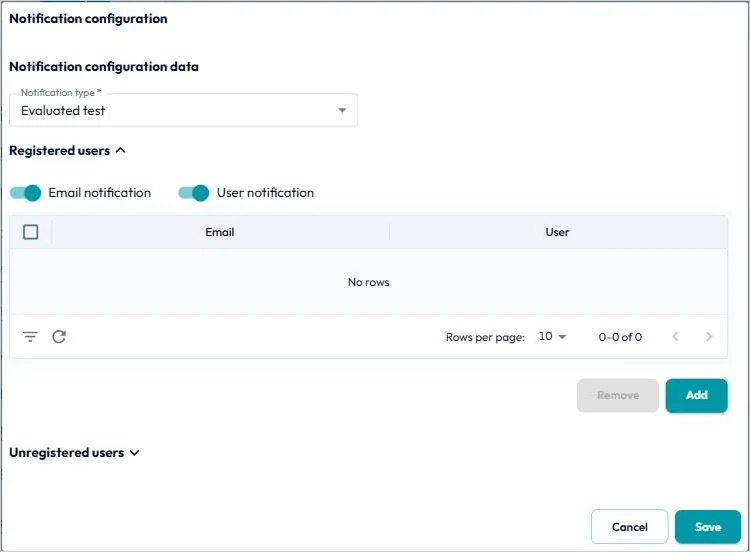
Notification configuration – defines who is notified, how and about what (see Chapter 20). Click Create, select the Notification type, switch Email notification and/or User notification (in-app) on, and add registered users (Add) or e-mail addresses of unregistered users. The Test plan reminder column shows how long before a scheduled test a reminder is sent.
Report configuration – defines which reports are generated and who receives them. Click Create, select the Report type and add registered or unregistered recipients. Available report types: Test evaluation, Test comparison, Daily / Weekly / Monthly statistics evaluation and Daily / Weekly / Monthly statistics comparison.
Click Save to save the test.
16.3 Test detail and actions
Click the test name in the list to open its detail. The detail contains the test data, test parameters with the load chart, schedule, criteria, notification and report configuration, and the lists of Reports, Test evaluations and Test comparisons of the test.

Button | Action |
|---|---|
 | Edit the test configuration. |
Terminate | End the test after confirmation (the test becomes inactive). |
 | Upload measured results manually as a ZIP file (see below). |
 | Start the test immediately through the LTL Agent. |
 | Stop the running test. |
Back | Return to the test list. |
Manual import of results
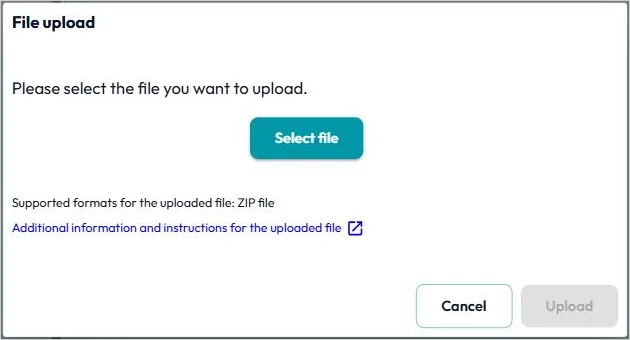
Click  , then Select file and Upload. The uploaded file must be a ZIP file that contains exactly one CSV (or JTL) file with the measured results. This file is the output of the JMeter Summary Report listener, which must be included in the test plan and must have the Filename field filled in (for example summary_report.csv). JMeter must use the default user.properties configuration file.
16.4 Test evaluations
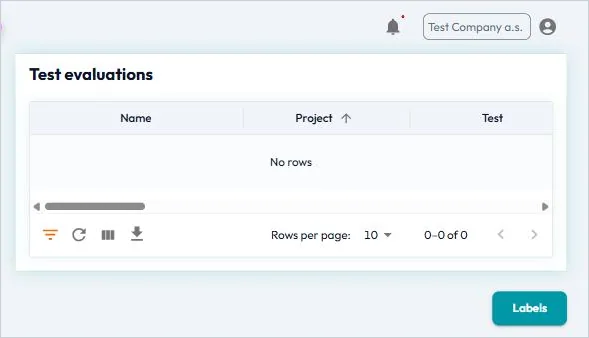
Tests › Test evaluations lists all evaluations of executed tests, i.e. the results of checking the measured values against the acceptance criteria. Evaluations are created automatically after each upload of results.
16.5 Test comparisons
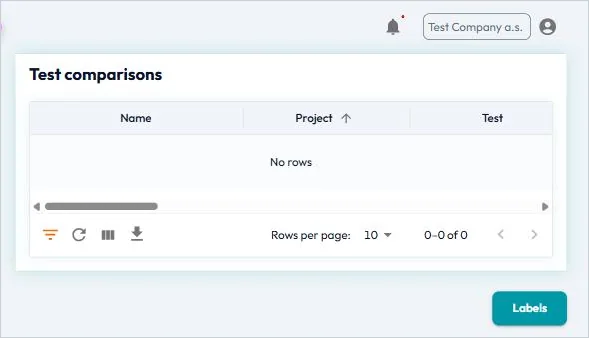
Tests › Test comparisons lists the comparisons of test runs with the reference test, showing whether the performance has improved or deteriorated. Any run of a test can be marked as the reference test.
17. Scheduled Tests
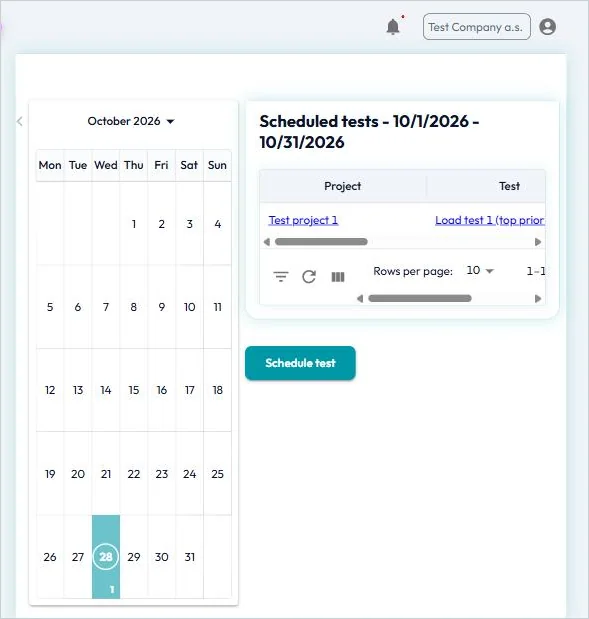
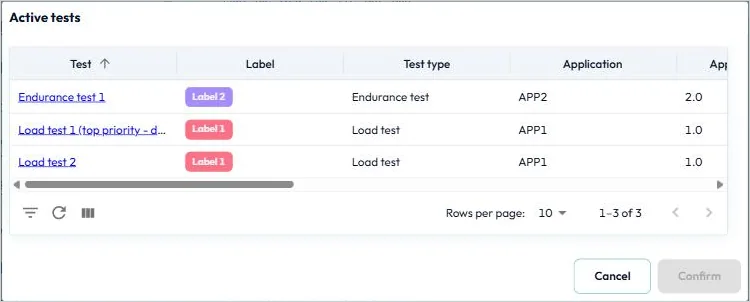
Scheduled tests shows a monthly calendar with the number of tests scheduled for each day and a list of scheduled tests in the selected period. Click Schedule test, select an active test and click Confirm to schedule it. Scheduled tests are also shown in the What's happening widget on the dashboard.
18. Agent
Agent shows the LTL Agent of your team: agent ID, topic, JMeter home, work directory, tests directory and the status and validity of the JWT certificate. The buttons  ,
,  ,
,  and
and  are used to manage the agent.
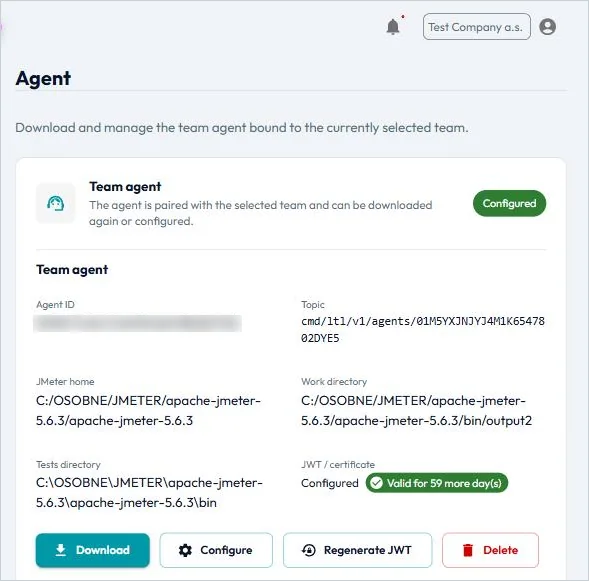
The complete procedure for creating, configuring, installing and using the LTL Agent is described step by step in Part IV of this manual.
19. Users
Users is used to manage the users of your team. The list shows the e-mail, name, role and status of each user.
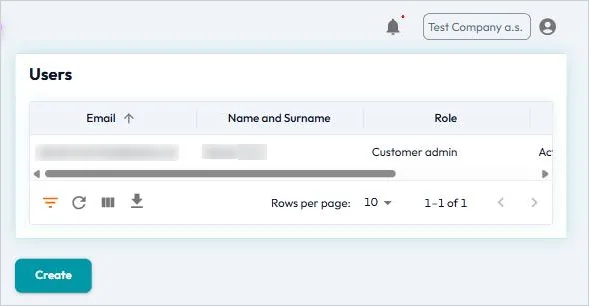
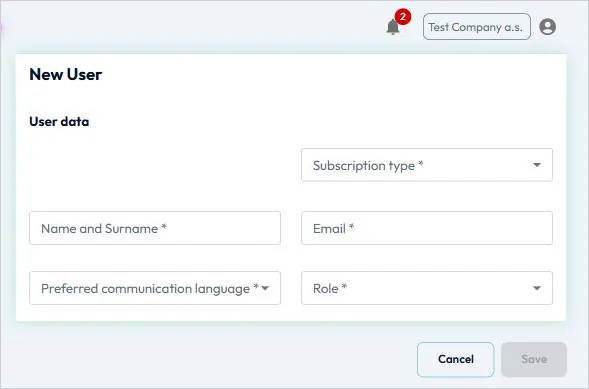
Creating a user
Click Create and enter the Subscription type (Free trial, Monthly fee, Yearly fee), Name and Surname, Email, Preferred communication language and Role. Click Save.
Role | Typical use |
|---|---|
Customer admin | Administrator of the team: manages users, subscription and all data of the team. |
Performance tester | Creates and runs tests, manages schedules and evaluates results. |
Manager | Monitors projects, tests and results. |
Free trial user | User of the free trial version. |
Test report listener | Receives test reports and notifications. |
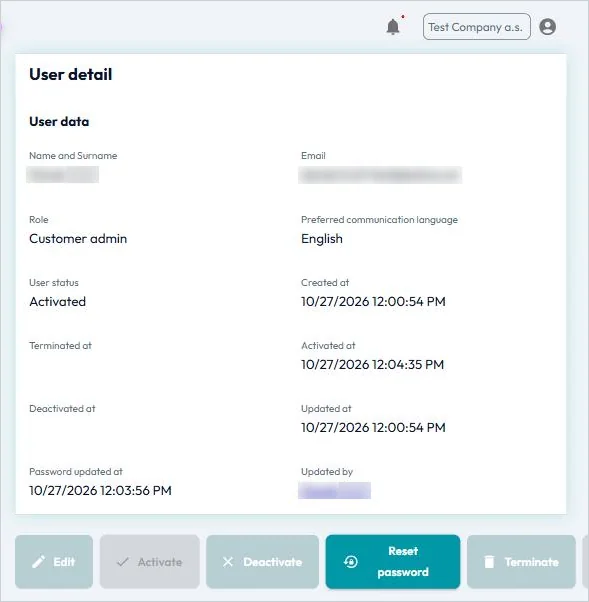
User detail
Click a user to open the detail with the user data, status and history (created, activated, deactivated, terminated, password updated). Available actions: Edit, Activate, Deactivate, Reset password, Terminate and Restore.
20. Notifications
LoadTestLab informs users about important events automatically. Notifications are delivered in two ways:
- In the application – shown under the bell icon in the top bar and in Notifications in the left menu,
- By e-mail – sent to the user's e-mail address.
Which notifications a user receives and in what form is set per test in Notification configuration (see Chapter 16.2).
Notifications in the top bar
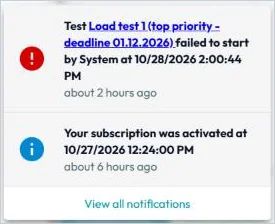
The bell icon shows the number of unread notifications. Click it to display the latest notifications; View all notifications opens the complete list.
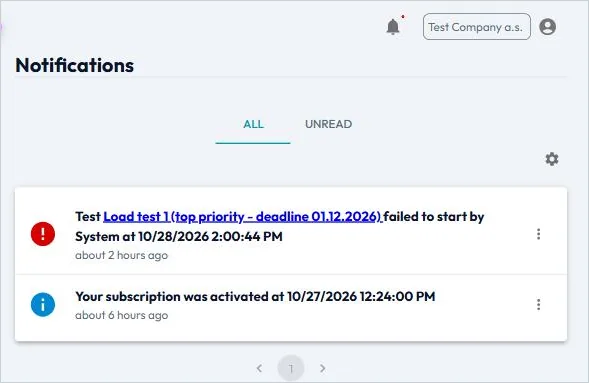
Notifications page
Notifications shows all notifications on the tabs All and Unread. Using the menu of each notification you can Mark as read or Delete it; the menu above the list provides Delete all notifications. Links in a notification open the related test.
Notification types
Area | Notification types |
|---|---|
Tests | Test plan reminder, Start test, Stop test, Start test failed, Stop test failed, Evaluated test, Comparative test, Different load params, Evaluation file invalid format – missing required header names |
Agent | Agent JWT expiring, Agent JWT expired |
Subscription and team | Subscription was activated, Subscription payment has failed, Subscription has expired, Subscription will cancel, Subscription was canceled, Subscription resumes, Team will soon terminate |
Users | User permission changed |
21. Reports
Reports lists all generated reports with the report name, report type and test. Reports are generated automatically according to the Report configuration of each test and are listed here together with the reports of all tests of your team.
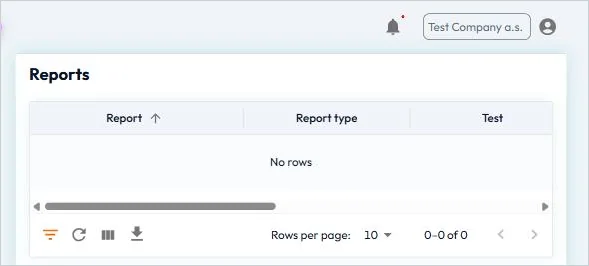
Available report types: Test evaluation, Test comparison, Daily statistics evaluation, Daily statistics comparison, Weekly statistics evaluation, Weekly statistics comparison, Monthly statistics evaluation and Monthly statistics comparison.
22. File Templates
File templates contains files that you can download and use with JMeter and the LTL Agent. Click the download icon in the row of a template to download it.
Template | Purpose |
|---|---|
user (Properties) | JMeter configuration file user.properties with the required logging settings. Save it in the JMeter bin directory (replace the existing file) and restart JMeter. |
jmeter_jmx_script_template (JMX) | Sample JMeter .jmx script with a preconfigured Thread Group, parameters and logging. Use it as inspiration when creating your own scripts. |
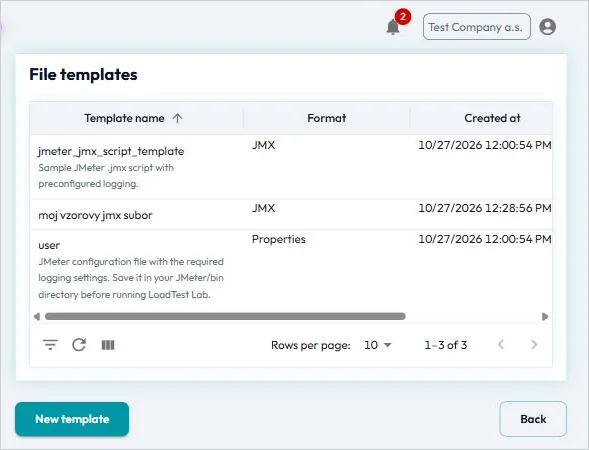
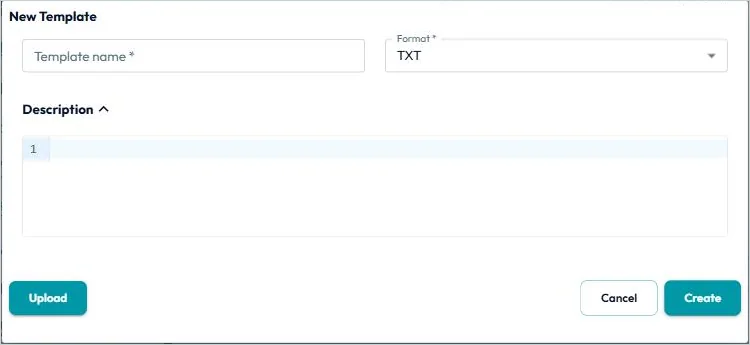
You can also create your own templates: click New template, enter the Template name, select the Format (JMX, Properties, BAT, BASH, TXT, ZIP), enter the content in the Description editor or click Upload to upload a file, and click Create.
23. Subscription
Subscription shows your current plan and its status (for example Basic Plan – Active) and the Subscription history with the subscription type, validity, number of users and payment method.
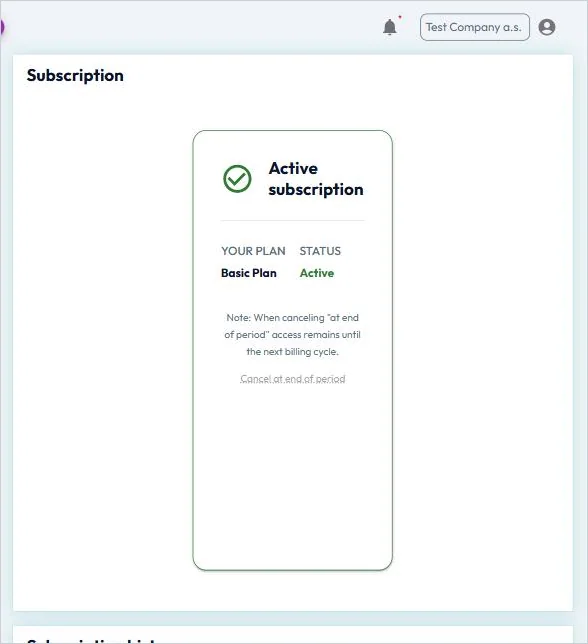
To end the subscription, click Cancel at end of period. Access to the application remains available until the end of the current billing period. Payments for the subscription are processed through Stripe; you are informed about the activation, renewal, failed payment, expiry or cancellation of the subscription by notifications.
24. Invoices
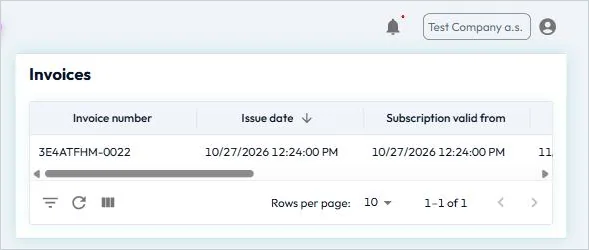
Invoices lists the invoices for your subscription with the invoice number, issue date, subscription validity and number of subscription users.
25. Help
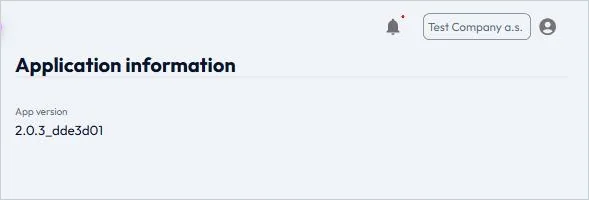
Help currently shows the application information, including the App version.
26. User Account Menu
Click the user icon in the upper-right corner to open the user account menu.
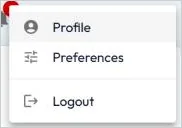
Profile
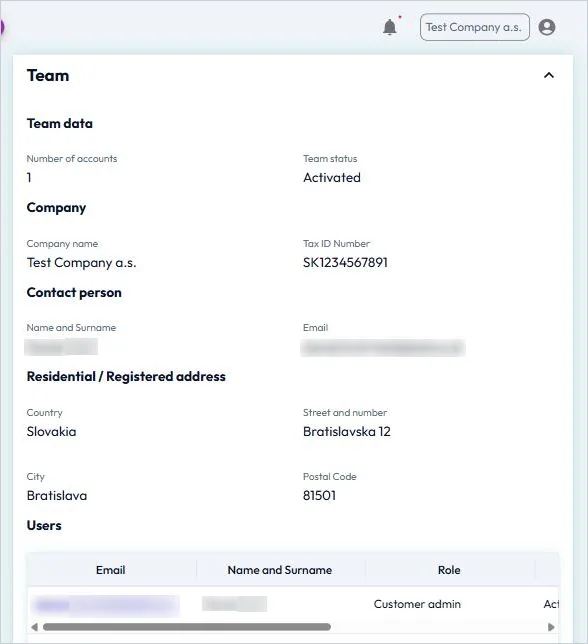
Profile consists of two sections:
- Team – team data (number of accounts, team status), company (name, tax ID number), contact person, residential or registered address and the list of users with role, status, 2FA login and daily backup.
- User – your user data (name, e-mail, preferred communication language) with the actions Change password, Edit and Delete account.
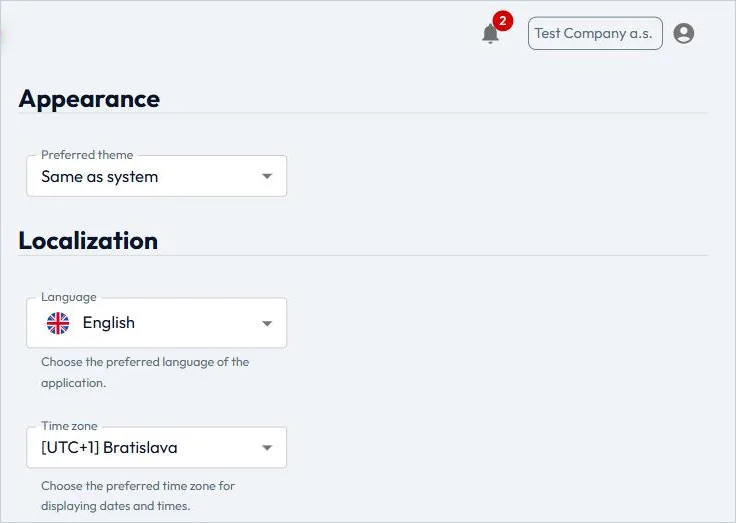
Preferences
Preferences allow you to set the Preferred theme (for example Same as system), the application Language and the Time zone used for displaying dates and times.
Logout
Logout signs you out of the application. For security reasons, you are also signed out automatically after a period of inactivity.
Performing Tests with the LTL Agent – Step by Step
This part describes the complete procedure from creating the LTL Agent to evaluating test results. Steps 1 to 4 are performed only once (and again after any change of the agent configuration); steps 5 to 7 are repeated for every test.
27. Step 1 – Creating the LTL Agent
- Log in to LoadTestLab.
- In the left menu, click Agent.
- On the right-hand side of the application, click the + Create button.
28. Step 2 – Configuring the LTL Agent
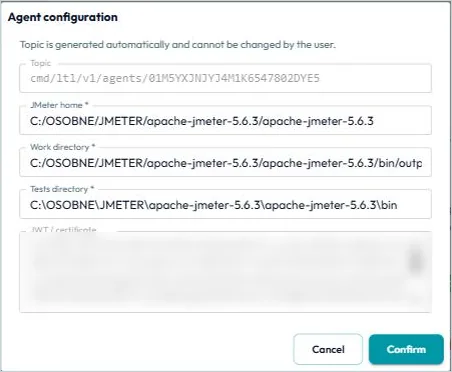
Click Agent in the left menu and then  . Complete the following fields in the dialog:
Field | Description |
|---|---|
JMeter home | Path to the main JMeter directory on the load generator. Do not enter the path to the JMeter bin directory; enter only the path to the main JMeter directory. |
Work directory | Directory where JMeter test outputs are stored during the test. The LTL Agent uploads them to LoadTestLab automatically after each test. Typically the output directory within the JMeter bin directory; the agent creates it if it does not exist. |
Tests directory | Directory containing all your JMeter .jmx files used in the tests. Typically the tests directory within the JMeter bin directory; the agent creates it if it does not exist. |
The Topic is generated automatically and cannot be changed. Click  .
.
29. Step 3 – Downloading the LTL Agent
Click Agent in the left menu and then  .
.
30. Step 4 – Installing and Running the LTL Agent
- Save the downloaded .zip file on the load generator, preferably in the JMeter bin directory.
- Extract the .zip file. No further installation is required.
- Start the agent: on Windows run run.bat; on Linux run run.sh.
It is not necessary to start JMeter. The LTL Agent has no graphical user interface; only a command-line window is displayed, showing all current activities of the agent (test start, test stop, test configuration, etc.) and any error messages.
31. Step 5 – Setting Up the Performance Test
a) Settings in LoadTestLab
Open Tests › Test list, select the test and click  (or create a new test, see Chapter 16.2).
- In Test parameters, set the Test duration, Ramp Up and Load (number of users) and select the JMeter test plan file name (.jmx). The LTL Agent looks for this file in the Tests directory from the agent configuration.
- In Test criteria, keep the project criteria or define criteria for this test and all its regression runs.
- In Notification configuration and Report configuration, define who receives which notifications and reports.
- Optionally, schedule the test in Test schedule (see Chapter 32).
Click  .
.
b) Settings in the JMeter script
Your JMeter .jmx script does not need to be modified, provided that you use the Summary Report listener for logging and the recommended user.properties file (see Chapter 22). The LTL Agent sets the test parameters and processes the results autonomously.
In specific cases, you may use the following properties in your script:
Parameter | JMeter expression |
|---|---|
duration | ${__P(duration, 60)} |
rampUp | ${__P(rampUp, 1)} |
fileName | ${__P(fileName)} |
testId | ${__P(testId)} |
threads | ${__P(threads, 1)} |
32. Step 6 – Starting and Scheduling Tests
Automatic (scheduled) start
In the test edit form, select Test schedule, set the Regularity, the start date and time (or the regular execution settings), click  , select the Launch method and click
  . Alternatively, click
  in Scheduled tests. Scheduled tests are shown on the Dashboard and in the calendar.
Manual start
Open the test detail (Tests › Test list, select the test) and click  .
.
33. Step 7 – Stopping, Results, Evaluation and Notifications
- Automatic stop – the test stops automatically according to its Test parameters.
- Manual stop – click
 in the test detail.
 - Upload of results – the LTL Agent uploads the results automatically after each test. If needed, you can upload them manually with
 (see Chapter 16.3).
 - Evaluation and comparison – after each upload, LoadTestLab automatically generates and archives reports and charts, evaluates the acceptance criteria and compares the run with the reference test. Results are available in Tests › Test evaluations and Tests › Test comparisons.
- Notifications – sent automatically by e-mail and in the application according to the Notification configuration of the test.
34. Changing the LTL Agent Configuration
- Click Agent in the left menu and then
 .
. - Change the configuration and click
 .
. - Click
 , install the new agent on the load generator and delete the original agent.
35. Generating a New JWT Certificate
The JWT certificate is valid for 60 days and is refreshed automatically. You are notified when it is about to expire (Agent JWT expiring) or has expired (Agent JWT expired). To generate a new certificate manually (for example for security reasons or when an employee or customer changes):
- Click Agent in the left menu and then
 . A new certificate valid for 60 days is generated and configured automatically.
 - Click
 , install the new agent on the load generator and delete the original agent.
36. Deleting the LTL Agent
- Click Agent in the left menu, then
 and Confirm.
 - Delete the LTL Agent from the load generator, as communication with it is terminated.
Appendix
37. Glossary
Term | Meaning |
|---|---|
Load generator | Computer or server with JMeter and the LTL Agent from which the load is generated. |
LTL Cloud | The LoadTestLab web application and its cloud infrastructure. |
LTL Agent | Application on the load generator that executes tests in JMeter on behalf of LoadTestLab and uploads the results. |
.jmx file | JMeter test plan (script) created and debugged by the tester in JMeter. |
Ramp Up | Period during which the number of virtual users increases to the target load. |
Peak | Period during which the full load is applied (test duration minus ramp-up). |
Acceptance criteria | Limits for the error rate and average response time used to evaluate a test. |
Reference test | Selected test run with which other runs of the same test are compared. |
Regression run | Repeated execution of the same test with the same parameters. |
JWT certificate | JSON Web Token (RFC 7519) used to authenticate the LTL Agent; valid for 60 days. |
Non-GUI mode | Running JMeter from the command line without its graphical interface, recommended for load tests. |